
Do you want one app for live TV UK, on-demand movies, and catch-up shows? Vivimate is your answer. It supports M3U playlists and EPG data. This means you can combine different streams into one place for easier watching.
Vivimate streaming is all about simplicity. It has a clean layout and works well on Android phones, Android TV, and Amazon Firestick. You can also watch scheduled shows and recent episodes without switching apps.
Need help in the UK? Call +44 785314 6902. They can assist with setup, licensing, or integrating with your IPTV service.
The big advantage is clear: stream movies UK and live channels from one spot. Vivimate helps you organize channels, import M3U lists, and manage EPG data. This makes your viewing flexible and efficient.
Table of Contents
Vivimate overview: what the app offers for UK viewers
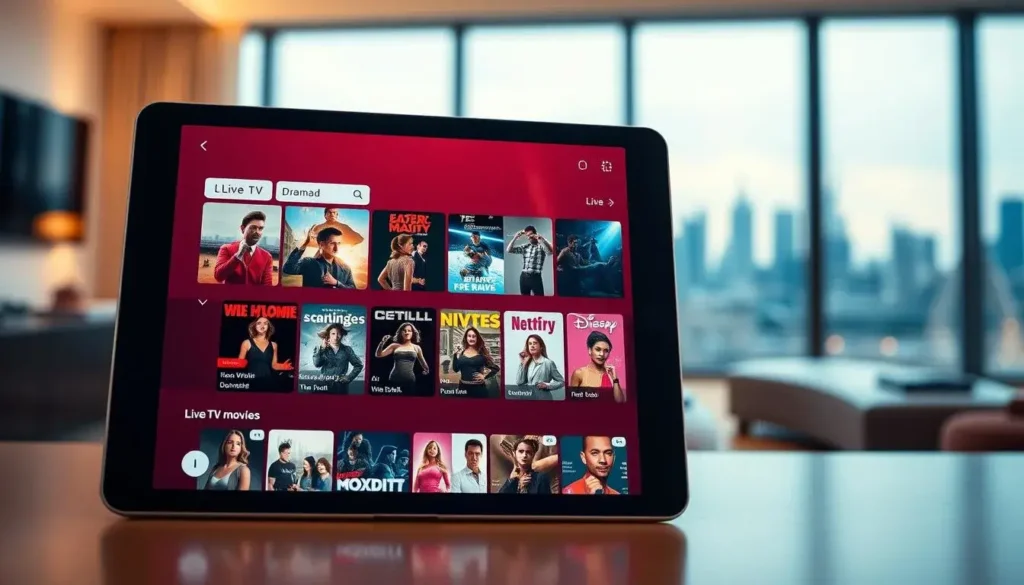
The app has a lightweight player that meets many UK viewers’ needs. This overview explains the vivimate app’s features. It covers live channels, on-demand libraries, and its simple interface for streaming.
Key features
The app accepts M3U playlist import and URL-based IPTV sources. This lets you add services from your provider. It also has built-in EPG import for programme timelines.
Channel grouping, favorites, and playback controls make it easy to navigate. Subtitle support is available when streams carry captions. You can sort channel lists, assign custom logos, and manage multiple playlists for personal organisation.
It works smoothly on lower-powered Android TV boxes and Amazon Firestick devices. The app focuses on a responsive UI and efficient playback.
Supported content: live TV, movies, and catch-up
Vivimate is a player, not a content host. Live TV, movies, and catch-up depend on the playlists and services you add. It supports live broadcast streams, movie VOD streams, and catch-up feeds from your IPTV supplier.
Common content includes UK free-to-air channels, international feeds, movie channels, and third-party VOD libraries. Catch-up works where EPG entries or VOD listings exist in playlists or provider portals.
Device compatibility across the UK
The app runs on Android phones and tablets, Android TV boxes, Nvidia Shield, and Amazon Fire TV/Firestick when sideloaded. Native Google Play availability may vary by device and region.
Check Android OS version, free storage, and hardware decoding support for H.264 and H.265 streams before installing. This ensures you can use vivimate on the devices you already own for reliable streaming in the UK.
| Platform | Install method | Typical support |
|---|---|---|
| Android phones & tablets | Google Play or APK sideload | M3U import, EPG, subtitles, remote-friendly UI |
| Android TV boxes & Nvidia Shield | Google Play or APK sideload | Hardware decode H.264/H.265, channel groups, low-lag playback |
| Amazon Fire TV / Firestick | APK sideload | Responsive on low-power sticks, requires sideloading for some regions |
| Third-party IPTV providers | Playlist or Xtream Codes credentials | Live channels, VOD libraries, catch-up where available |
How to download and install the vivimate app
Vivimate is often given as an APK for Android devices. It might not be in every Google Play store in the UK. An APK lets you install on Android phones, tablets, set-top boxes, and Android TV. It gives access to live TV, movies, and catch-up services where the Play Store version is not available.
vivimate apk download: what to know before installing
Only download APK files from trusted sources and check the file if you can. Make sure the app version matches your Android build. Use antivirus tools to scan the APK and review the permissions it asks for, like network access and storage.
Installation steps for Android and Android TV
To install on an Android phone or tablet, enable Install unknown apps or Unknown sources in Settings. Then, download the APK directly or transfer it via USB. Open the file with a file manager, run the installer, and grant the permissions it asks for.
On Android TV, use a downloader app from Google Play or sideload via ADB or USB. Transfer the APK to the TV box, install it, and find the app in your apps list. Pin the app to the launcher for quick access. Also, check Google Play first in case a compatible Play Store build is available to simplify updates.
Setting up vivimate on Firestick
Prepare your Fire TV by enabling Apps from Unknown Sources in Settings. Install the Downloader app from the Amazon Appstore. Use Downloader to fetch the APK via a direct URL or load the file from a network share, then install and grant permissions.
After installation on the Firestick, clear cache and restart the device if playback stalls. Confirm regional settings and DNS are correct in your network to reduce geo-blocking and playback issues when using vivimate firestick. If you prefer a simpler route, check whether you can download vivimate from an official store for your device to ease updates and security.
vivimate iptv player: setup and configuration
Begin by opening the app and finding the playlist manager. You can add M3U files from your device or enter URLs directly. The app supports HTTP, HTTPS, and Xtream Codes formats with the right credentials.
When adding M3U entries, name them clearly. This makes it easy to find live TV, VOD, or regional feeds. Organize playlists into groups and refresh them when your provider updates channels. Many providers offer EPG URLs and VOD links to enhance your experience.
Adding IPTV playlists and M3U links
Use the import tool to add an M3U file or enter a URL. For Xtream Codes, enter the portal, username, and password. After adding, check stream paths and remove duplicates.
Give playlists simple names like “UK Live” or “Movies.” Refresh your lists regularly to keep them up-to-date. Link EPG or VOD links to playlists for guides and catch-up content.
Customizing EPG and channel groups
Import EPG data with an XMLTV file or a URL. Make sure EPG channel IDs match your playlist names. Set the timezone to Europe/London for accurate UK program times.
Organize channels into groups by genre or provider. Mark favorites, hide unused channels, and reorder lists for easier access. Add logos and metadata when available to improve scrolling recognition.
Troubleshooting common playback and buffering issues
Buffering can be due to weak Wi-Fi, low bandwidth, or server overload. Test your speed: aim for 5–10 Mbps for SD, 10–25 Mbps for HD, and 25+ Mbps for 4K. Use Ethernet if possible for stable playback.
Enable hardware acceleration in settings if your device supports it. Clear the app cache for smoother streams. If issues persist, check codecs or try alternate streams from your playlist.
To find the problem, try opening the stream URL in VLC on a PC. If VLC works smoothly, the issue might be your device or app. If VLC buffers too, contact your IPTV provider or test another playlist. These steps help keep your vivimate iptv player running smoothly.
Using vivimate on Android TV for the best viewing experience
First, adjust Android TV vivimate settings to fit your device and network. Turning on hardware decoding reduces CPU load and makes videos smoother. If you can, increase the buffer size a bit to lessen stutters on shaky connections.
Make sure to close background apps and free up memory on your Android TV box. This helps avoid frame drops. Also, update firmware and drivers on devices like Nvidia Shield for better codec and performance. Set up parental controls and subtitle preferences for family viewing in the UK.
Remote control and navigation tips:
Get familiar with the Vivimate layout for quick access to playlists, EPG, and favorites. Use the back, home, and directional pad to control playback and navigate. For faster text entry, pair a wireless keyboard or use a smartphone remote app when adding playlist URLs or credentials.
Use shortcuts to switch channels, open the EPG, and jump to favorites. These shortcuts make your routine faster and reduce time spent searching menus during live sports or programmes.
Streaming quality and bandwidth recommendations:
For reliable vivimate streaming, aim for 5 Mbps for SD, 8–12 Mbps for HD, and 20+ Mbps for 4K. Keep 10–20% extra bandwidth to avoid buffering during short network drops. Choose Ethernet or 5 GHz Wi‑Fi and place the router near the Android TV box for a stable connection.
Enable Quality of Service on your router to make streaming traffic a priority. Watch out for ISP throttling and peak-time congestion in the UK. If your sustained throughput is lower than expected, contact your internet provider to check it out.
Adjust Android TV vivimate settings, pairing, and network choices together for the smoothest playback and the best viewing experience for live TV and movies.
vivimate firestick setup and tips for smooth playback
Before installing any app, update your Fire OS. Open Settings, then My Fire TV, and About to check for updates. This keeps your system running smoothly.
Next, enable developer options. Go to My Fire TV, select Developer Options, and turn on Apps from Unknown Sources and ADB Debugging. Install Downloader from Amazon’s store and X-plore for managing APKs.
Preparing your Firestick for third-party apps
Give Downloader and your file manager storage and installation permissions. Turn off aggressive battery optimization for these apps. This prevents the OS from stopping playback.
Clear unused apps and temporary files. This saves space and boosts performance.
Steps to sideload vivimate on Firestick
Open Downloader and enter the vivimate APK download URL. Tap Download, then Run when prompted. Confirm installation and wait for it to complete.
Find Vivimate under Your Apps & Channels. Press the menu button to move it to the top. If installation fails, check storage, verify the APK, or try a different APK source.
Remember, the Firestick might need a reinstall or a clear-data cycle if an update fails. Back up your playlists and settings to recover faster.
Performance tuning and storage management
Free up internal storage by uninstalling unused apps and clearing cache. More space means better performance for Vivimate.
Consider an OTG USB drive or a Fire TV with more storage for better performance. Close background apps and restart the Firestick to clear memory.
Regularly check for Fire OS updates for kernel and driver improvements. If playback buffers, try lowering stream quality or switching sources to test stability.
Security, legality, and best practices for vivimate streaming
When using Vivimate, protect your device and data. Be cautious with apps from unknown sources. Always check APKs before installing and keep your OS updated to avoid threats.
Ensuring safe apk downloads and verifying sources
Download apps only from trusted stores or the developer’s site. Look at version history and user feedback. If a cryptographic hash is given, check it against your download to ensure it’s safe.
Run APKs through antivirus software before installing. Test new apps on a spare device if you can. Avoid cracked or modified apps, as they can harm your device and privacy.
Understanding content licensing and your responsibilities in the UK
Vivimate is just a player and doesn’t provide content. Streaming copyrighted material without permission can break UK law. This could lead to fines or even criminal charges.
Choose playlists and services that have the right to stream the content. Make sure your subscriptions are active and providers are legitimate. Repeatedly streaming without permission can result in penalties.
Using a VPN and privacy considerations
Many use VPNs for privacy on public Wi-Fi or to access blocked content. But, a VPN doesn’t make illegal content legal. It’s for protecting your connection and data.
Choose well-known VPNs like ExpressVPN, NordVPN, or Surfshark. They offer good UK and European servers, strong privacy policies, and fast speeds. Test your VPN on your device to ensure smooth streaming.
Balance privacy with performance when setting up your VPN. Make sure your VPN app works with your device. Understand how settings like split tunneling or DNS affect your streaming.
Comparing vivimate to other IPTV and streaming apps in the UK
When picking an IPTV player, think about your devices and what you need. You might want a simple app for quick menus or a full-featured client for recording and more. This guide helps you decide based on user feedback and features.
Feature comparison: interface, playback, and device support
Vivimate is known for its clean, fast UI. It works well with M3U and Xtream formats and has good EPG parsing. But, apps like TiviMate and IPTV Smarters offer more features, like multi-playlist management and scheduled recording.
Kodi is a flexible choice with wide plugin support but needs more setup. Think about your devices when choosing between vivimate and other IPTV options.
Device support differs. TiviMate has a native Android TV app, while IPTV Smarters targets phones and Fire TV. Other solutions might need sideloading or manual setup. Consider your hardware before making a decision.
Price and value considerations
Vivimate is often free or freemium. Your costs usually come from IPTV subscriptions and optional VPNs for privacy. Paid players like TiviMate Premium offer extra features that might be worth the cost.
Calculate your monthly spend by adding provider fees, premium player costs, and VPN plans. Try trial periods to check stream quality and channel lineup before committing.
User reviews and community feedback
Reviews of vivimate often highlight its low resource use and easy playlist handling. However, some users mention slower updates and UI issues. Reddit and UK forums often discuss real-world problems like stream stutters or playlist issues.
Test playlists in VLC or on a desktop player before importing. Check recent app-store comments and UK forums for the latest on performance and reliability.
Conclusion
In this vivimate conclusion, you’ve learned that Vivimate is a flexible IPTV player for streaming in the UK. It allows you to import M3U playlists, EPG files, or use provider credentials. This way, you can stream live TV and movies easily.
The app works on Android phones, Android TV, and Firestick (via sideloading). This gives you many options for watching at home.
Here are the steps to get started: download APKs from trusted sources and follow safe setup procedures. Make sure to configure playlists and EPG data correctly. You also got tips for Android TV and Firestick, and advice to fix buffering and improve playback.
Remember to stay legal and secure: check if content is legitimate, avoid unlicensed streams, and consider a VPN for privacy. But, remember, a VPN doesn’t change licensing rules. Before choosing Vivimate, compare it with other players based on device support, features, and cost.
If you need help with Vivimate setup or support in the UK, contact +44 785314 6902.
FAQ
What is Vivimate and what can it do for viewers in the UK?
Vivimate is an app for watching live TV, movies, and catch-up streams. It works on Android phones, tablets, and TV boxes. You can also use it on Nvidia Shield and Amazon Firestick. For help in the UK, call +44 785314 6902.
Which content formats and sources does Vivimate support?
Vivimate supports M3U playlists, HTTP/HTTPS streams, and EPG XMLTV feeds. Some providers give Xtream Codes and VOD lists. The content you see depends on what you add to Vivimate.
Is Vivimate compatible with my Android TV or Firestick?
Yes, Vivimate works on Android devices and Amazon Fire TV/Firestick. Check your device’s version and hardware for the best experience.
How do I safely download the Vivimate APK?
Download APKs from trusted sources or the official page. Check the version and changelog. Scan the APK with antivirus software. Avoid modified APKs with malware.
What are the basic steps to install Vivimate on Android and Android TV?
Enable “Install unknown apps” in Settings. Transfer the APK to your device. Run the installer and grant permissions. On Android TV, use Downloader or sideload and pin the app for easy access.
How do I sideload Vivimate on an Amazon Firestick?
Enable Apps from Unknown Sources and ADB Debugging. Install Downloader from Amazon Appstore. Enter the APK URL in Downloader or transfer the APK via network share. Install and find Vivimate in “Your Apps & Channels”.
How do I add M3U playlists or Xtream credentials to Vivimate?
Open Vivimate’s playlist manager. Import M3U files or paste URLs. For Xtream services, enter the portal URL with credentials. Name and organize playlists and refresh them when updated.
How can I import and align EPG data for accurate UK program guides?
Import EPG via XMLTV file or URL in Vivimate settings. Match EPG channels to your playlist channels. Set the UK timezone and adjust offsets for correct schedules.
What should I do if I experience buffering or playback issues?
Weak Wi‑Fi, limited device hardware, or IPTV server overload can cause issues. Test your bandwidth and switch to Ethernet. Enable hardware decoding and clear the app cache. Try streams in VLC to isolate the problem.
How do I optimize Vivimate for Android TV performance?
Enable hardware decoding and increase buffer size. Choose an efficient video renderer and close background apps. Keep firmware and drivers updated. Use a wired connection or 5 GHz Wi‑Fi for stable playback.
What storage and performance tips apply to Firestick devices?
Uninstall unused apps and clear caches to free up storage. Use an OTG USB drive or a Fire TV with larger storage for better performance. Restart the device and keep Fire OS updated.
Is using a VPN with Vivimate advisable?
Many use VPNs for privacy and to avoid ISP throttling. Choose a reputable provider with fast UK/European servers. Remember, a VPN does not legalize unlicensed content and may affect streaming speed.
What legal responsibilities should I be aware of in the UK?
Streaming copyrighted material without rights may breach UK law. Use licensed playlists and IPTV providers. Confirm legitimacy before subscribing to paid services to avoid legal issues.
How does Vivimate compare with apps like TiviMate or IPTV Smarters?
Vivimate has a lightweight UI, strong M3U and EPG handling, and broad compatibility. Competitors offer premium features like recording. Choose based on device support, feature needs, and total cost.
Can I test playlists before adding them to Vivimate?
Yes. Test streams in VLC or another desktop player. Confirm URL stability and codec compatibility before importing into Vivimate. Testing saves time troubleshooting.
Where can I get help or support for Vivimate setup in the UK?
For help in the UK, call +44 785314 6902. Also, check UK forums, Reddit, and app store reviews for user feedback and troubleshooting tips.
