
Table of Contents
Introduction
If you have recently cut the cord and switched to internet-based television, you have likely heard of TiviMate. In 2026, it is widely considered the absolute best IPTV player available on the market. It transforms a standard streaming feed into a premium, cable-like experience.
However, many new users misunderstand what the application actually does. They install the app expecting instant access to live TV, movies, and sports, only to be met with a blank screen. This is because you need a high-quality streaming subscription to make the app function.
This complete guide will walk you through exactly what this powerful application is and how to use it. We will cover the installation process, the benefits of upgrading to Premium, and how to configure your electronic program guide. By the end, you will have a flawless, buffer-free entertainment hub.
What is TiviMate?
TiviMate is an advanced IPTV media player application designed specifically for Android operating systems. It is built to organize and display internet television playlists in a clean, user-friendly interface.
It is crucial to understand that it is strictly a video player. It does not provide, host, or sell any television channels, movies, or series. It is essentially an empty shell waiting for you to provide the content.
To use the application, you must already have an active subscription with an IPTV provider. Once you input your provider’s credentials into the app, it decodes the video streams and displays them on your screen.

How TiviMate Works
The application functions by reading specific data formats provided by your streaming service. When you purchase a subscription, your provider gives you login details, usually in the form of an M3U link or Xtream Codes API.
You input these details into the app’s settings. The software then connects to your provider’s server, downloads the channel directory, and organizes it into categories. It creates a seamless bridge between complex server data and a visually appealing interface.
Because it handles data so efficiently, it is incredibly fast. Channel zapping (switching between channels) is nearly instantaneous, provided your internet connection is stable. This efficiency is why it remains the top choice for streaming enthusiasts in the UK.
TiviMate Free vs TiviMate Premium
When you first download the app, you are given the free version. While the free version allows you to watch live TV, it is heavily restricted. To unlock its full potential, upgrading to TiviMate Premium is highly recommended.
Free Version Limitations
The free version allows you to add one main playlist and browse basic live TV channels. However, you cannot access Video on Demand (VOD) folders, catch-up TV, or manage your favorites. Furthermore, the electronic program guide (EPG) functionality is limited, making it harder to browse schedules.
Premium Features
Upgrading to Premium unlocks a massive suite of features. The cost is extremely reasonable, typically around $4.99 per year or a one-time lifetime fee of roughly $20.
| Feature | Free Version | Premium Version |
| Multiple Playlists | No (Limited to 1) | Yes (Unlimited) |
| Favorites Management | No | Yes |
| Catch-up TV Support | No | Yes |
| VOD (Movies/Series) | No | Yes |
| Custom Panel Transparency | No | Yes |
Looking for a reliable IPTV subscription for TiviMate? VisitOmno IPTVor contact us on WhatsApp at +44 7853 146902 for instant support, setup assistance, and premium IPTV plans.
Supported Streaming Devices
Because the application is built specifically for large television screens, it does not officially support touchscreen devices like smartphones or iPads. It thrives on devices with dedicated remote controls.
Android TV and Google TV
The app is natively available on the Google Play Store for certified Android devices. This includes the Nvidia Shield, Chromecast with Google TV, and Android-powered Smart TVs from Sony and Philips. Installation on these devices takes only seconds.
Amazon Fire TV Devices
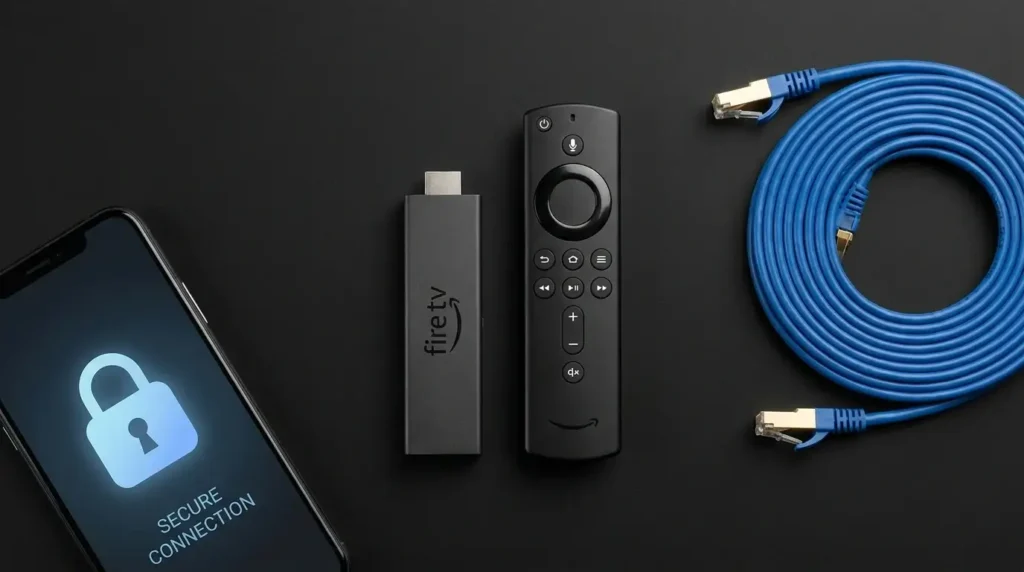
The TiviMate Firestick integration is legendary, but it requires a slightly different approach. Because Amazon uses a modified operating system, the app is not in the official Amazon Appstore. You must “sideload” it using a secondary downloader application.
Non-Supported Devices
It is important to note that the app is not compatible with Apple TV, Roku, or native Samsung Tizen/LG WebOS televisions. If you own these devices, you will need to purchase an external Android box or Firestick to use the app.
How to Install TiviMate on Firestick
Installing the app on an Amazon Fire TV Stick requires sideloading. Follow these exact steps to get the TiviMate Premium APK running safely.
1.Install the Downloader App:
Navigate to the Firestick home screen and select the “Find” or “Search” icon. Type “Downloader” and install the official app with the orange icon.
2.Enable Unknown Sources:Required for third-party apps.
Go to Firestick Settings > My Fire TV > Developer Options. Select “Install unknown apps” and turn it ON for the Downloader app. (Note: If Developer Options are hidden, click “About” and press the select button on your device name 7 times).
3.Download the APK:
Open the Downloader app and click the URL bar. Enter a trusted shortcode or URL (e.g., firesticktricks.com/tivi) and click “Go”. The APK file will begin downloading.
4.Install and Clean Up:Complete the process.
Once the download finishes, a prompt will appear. Click “Install”. After installation, click “Done”, then click “Delete” twice in the Downloader app to remove the installation file and save storage space.
How to Install TiviMate on Android TV
If you are using a device running official Android TV or Google TV, the TiviMate Android TV setup process is incredibly straightforward. You do not need to sideload anything.
First, navigate to the Google Play Store on your device’s home screen. Click the search icon and type the name of the application. Ensure you select the official app developed by “Armobsoft FZE.”
Click “Install” and wait for the process to complete. Once finished, you can open the app immediately and begin inputting your provider’s playlist credentials.
Adding an IPTV Playlist: M3U vs Xtream Codes
Once installed, you must add your subscription data. You will generally have two options: TiviMate M3U links or TiviMate Xtream Codes.
The Xtream Codes API Method
This is the highly recommended method. When you select “Xtream Codes” in the app, you will be asked for a Server URL, a Username, and a Password. This method is faster, more secure, and automatically organizes your VOD categories and live TV.
The M3U Playlist Method
An M3U link is a single, very long URL containing all your channel data. While it works, it forces the app to download a massive text file every time it updates. This can cause menu lag and often fails to organize movies and series properly.
Always ask your provider for Xtream Codes API details for the best performance. If your provider only offers M3U, you can still paste it into the app, but expect a slightly slower initial load time.
Setting Up and Configuring the EPG
The TiviMate EPG (Electronic Program Guide) is what makes the app feel like a premium cable box. It provides a visual grid of what is currently playing and what is coming next.
If you used the Xtream Codes login method, your EPG should populate automatically. If it does not, or if you used an M3U link, you may need to add an EPG URL manually. Navigate to Settings > EPG > EPG Sources and input the link provided by your streaming service.
To ensure your TV guide is always accurate, go to the EPG settings and set “Update on app start” to ON. You should also set the “EPG days to keep” to 3 days to balance guide detail without consuming too much device memory.
Best TiviMate Features for 2026
The application dominates the market because of its unparalleled feature set. Once you unlock Premium, you gain access to powerful tools.
- Multi-View (Picture-in-Picture): Watch up to four live channels on the same screen simultaneously. This is an absolute game-changer for live sports and NFL Sundays.
- Catch-Up TV: If your provider supports it, a small clock icon will appear next to certain channels. This allows you to rewind and watch broadcasts from the past 48 hours.
- Recording Capabilities: You can schedule recordings for future broadcasts directly to an external USB drive or network-attached storage (NAS).
- Advanced Favorites: Create custom folders to group your favorite sports networks, news channels, and movie streams for instant access.
TiviMate vs IPTV Smarters
When searching for the best IPTV app, the debate usually comes down to IPTV Smarters vs TiviMate. Both are excellent, but they serve slightly different users.
IPTV Smarters is the most versatile player globally. It is free, incredibly easy for beginners to set up, and works on almost every platform, including Apple devices and Samsung Smart TVs.
However, for Android and Firestick users who want a premium experience, TiviMate is vastly superior. It offers a cleaner UI, faster channel zapping, better EPG integration, and advanced features like Multi-View. If you have an Android-based device, it is the undisputed winner.
Pros and Cons of TiviMate
To provide an honest review, it is important to weigh the advantages and limitations of the software.
Pros
- The most intuitive and visually appealing interface on the market.
- Lightning-fast channel switching and data loading.
- Incredible Premium features, including multi-view and scheduled recording.
- Highly customizable EPG and panel settings.
Cons
- Only available on Android and Fire OS devices (No Apple or Roku support).
- The free version is too limited for long-term use.
- Upgrading to Premium on a Firestick requires a secondary “Companion” app on an Android phone, which can be confusing for new users.
Expert Tips for Buffer-Free 4K Streaming
The player app is only as strong as your network connection. To achieve flawless 4K video playback, optimize your hardware.
- Adjust Buffer Settings: In the app settings, navigate to Playback > Buffer Size. Change this from “None” to “Medium” or “Large.” This gives the app a few seconds of leeway to absorb network drops without freezing the video.
- Hardwire Your Device: Never rely entirely on Wi-Fi for 4K streaming. Use an Ethernet adapter to hardwire your Firestick or Android box directly to your router.
- Turn on Hardware Decoding: Ensure hardware decoding (AMLogic or similar) is enabled in the playback settings. This forces your device’s GPU to process the video, taking the strain off the main processor.
Common Problems & Troubleshooting Solutions
Even the best software occasionally encounters errors. Here are the most common issues and how to fix them quickly.
EPG is Blank or Showing “No Information”
This usually means the app failed to sync with your provider’s server. Go to Settings > EPG and click “Update EPG.” If it still fails, clear the app cache in your device settings and restart the application.
Streams are Buffering Constantly
If adjusting the buffer size does not work, the issue is likely your internet connection or ISP throttling. Restart your home router. If the issue persists during live sports, activate a VPN to bypass ISP speed restrictions.
Black Screen on VOD Movies
If live TV works but movies show a black screen with audio, it is a codec issue. In the app settings, change the default VOD player to an external application like VLC or MX Player.
Common Mistakes When Using IPTV Apps
New users often make simple mistakes that ruin their streaming experience. Avoid these common pitfalls.
First, do not enter typos when inputting your Xtream Codes API. The Server URL must be exact, including the http:// prefix and the port number (e.g., :8080). A single wrong character will result in a connection failure.
Second, avoid adding too many massive playlists. If you add five different subscriptions, each with 100,000 channels, the app will consume all your device’s memory trying to update the EPG. Stick to one premium, high-quality provider.
Finally, do not forget to backup your settings. Once you have organized your favorites and tweaked the UI, go to Settings > General > Backup Data. Save this file to a USB drive so you never lose your configuration.
The Best IPTV Service for TiviMate (Omno IPTV)
The application is essentially a high-performance sports car; it needs premium fuel to run properly. Finding a reliable UK provider is the most critical step.
We highly recommend pairing this app with an enterprise-grade network like Omno IPTV. We provide ultra-stable, uncompressed 4K streams that integrate flawlessly with the Xtream Codes API format.
Ready to cut the cord? Get in touch with our setup team today. VisitOmno IPTVor message us on WhatsApp at +44 7853 146902 for instant activation and premium support.
With our service, you get access to tens of thousands of live channels, comprehensive UK sports coverage, and a meticulously organized VOD library. Our servers utilize advanced Anti-Freeze technology, ensuring your stream stays locked at 60fps during major Premier League matches.
Frequently Asked Questions (15 FAQs)
1. What is TiviMate?
It is a premium media player application designed for Android and Fire OS devices. It organizes and plays internet television playlists but does not provide any TV channels itself.
2. How much does TiviMate Premium cost?
The Premium version typically costs around $4.99 per year or roughly $20 for a one-time lifetime license. It unlocks all features and covers up to five devices.
3. Does the app include live TV channels?
No. It is completely empty upon installation. You must purchase a subscription from a third-party streaming provider and input those credentials into the app.
4. Can I install it on an Apple TV or iPad?
No. It is exclusively developed for Android operating systems. Apple users should look into alternatives like IPTV Smarters Pro or GSE Smart IPTV.
5. How do I get Premium on a Firestick?
Because the Firestick does not have the Google Play Store, you must download the “TiviMate Companion” app on an Android phone, purchase the Premium license there, and then log in on your Firestick.
6. What is Xtream Codes API?
It is a login method that uses a Server URL, Username, and Password. It is highly recommended over M3U links because it loads faster and organizes categories automatically.
7. Why is my EPG not updating?
Your provider’s EPG server might be down, or your device cache is full. Go to the app settings, manually click “Update EPG,” or clear the app’s cache in your device settings.
8. Can I record live TV with this app?
Yes, if you have the Premium version. You can schedule recordings, but you will need an external USB drive or network storage attached to your device, as streaming devices have limited internal space.
9. Why is my stream buffering?
Buffering is usually caused by network congestion or ISP throttling. Try increasing the “Buffer Size” in the playback settings, hardwiring your device, or using a reputable VPN.
10. What is Catch-up TV?
Catch-up is a feature that allows you to watch live broadcasts that aired up to 48 hours ago. Your streaming provider must support this feature for it to work in the app.
11. Can I watch multiple channels at once?
Yes. The Premium version includes a “Multi-view” feature, allowing you to split your screen and watch up to four live events simultaneously, perfect for sports fans.
12. How do I add channels to my favorites?
While watching a channel, press and hold the “Select” or “OK” button on your remote. A menu will appear on the right side; click the star icon to add it to your favorites.
13. Do I need a VPN to use this app?
While not mandatory for the app itself, using a VPN is highly recommended when streaming in the UK. It encrypts your traffic and stops ISPs from throttling your speeds during live sports.
14. What is the best alternative to this app?
If you cannot use Android devices, IPTV Smarters Pro is the best universal alternative. It works on Apple devices, Samsung Smart TVs, and LG WebOS televisions.
15. How do I get a subscription for the app?
You can purchase a premium, buffer-free subscription directly from providers like Omno IPTV. We provide full setup support and Xtream Codes integration via WhatsApp.
Conclusion
In 2026, TiviMate remains the absolute gold standard for internet television players. Its clean UI, lightning-fast navigation, and powerful Premium features provide an experience that rivals, and often exceeds, traditional high-end cable boxes.
While installing it on a Firestick requires a few extra steps via sideloading, the effort is entirely worth it. By upgrading to Premium and utilizing the Xtream Codes API login method, you unlock the ultimate cord-cutting tool.
However, remember that this powerful application is useless without a high-quality streaming provider behind it. To truly enjoy buffer-free 4K sports and massive VOD libraries, you need a robust network.
If you are ready to build the perfect home theater setup, reach out to our team. Visit Omno IPTV or contact us on WhatsApp at +44 7853 146902 for expert setup assistance and access to the most reliable IPTV streams in the UK!
TiviMate Free vs Premium 2026: Is It Still Worth It?
This video breaks down the major differences between the free and premium versions of TiviMate, explaining exclusive features and providing a step-by-step upgrade guide for 2026.
